The four roles
- Read only: sees every screen of the client and changes nothing.
- Analyst: works the alerts, with labels, cases, comments and imports.
- Supervisor: also approves what needs a second person and reads the audit trail.
- Client admin: also manages the team, the sign-in policy and the API keys.
Each person’s menu shows only the pages of their role, and the API refuses what the role does not allow.
Inviting someone
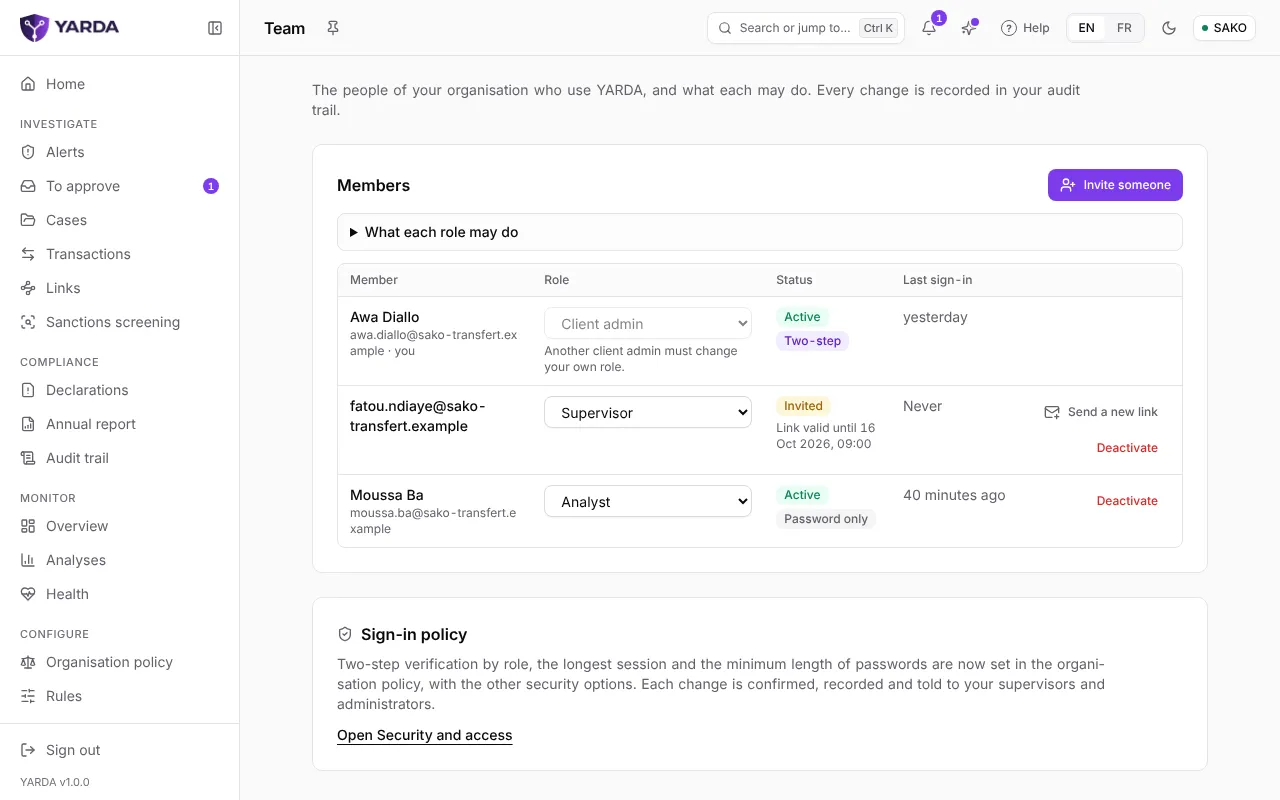
“Team”, under Organisation, is for client admins. Choose “Invite someone”, enter their work email, their name if you wish and their role, then “Send the invitation”. They receive a link to choose their password, valid for 48 hours; “Send a new link” sends another.
- Each member’s role changes in the list. Your own role can only be changed by another client admin.
- The “Status” column says whether the person is active, invited or deactivated, and whether they sign in with two steps or a password only.
- “Deactivate” signs the person out of all their devices at once; “Reactivate” gives access back.
Every change to the team is written to your audit trail. The search (Ctrl K) also offers “Invite a member”.
For the team’s training, the academy’s “Team follow-up” shows who followed which module, and when, with each attestation; deactivated people stay listed, their attestations are part of the record. “Export the whole team (CSV)” attaches it to your annual compliance review, and the export is written to the audit trail.
The sign-in policy
Two-step verification required by role, the longest session and the shortest password are set in the “Security and access” tab of the organisation policy; “Open Security and access”, on the Team page, leads there. Every change is confirmed, written to the trail and signalled to your supervisors and admins.
Protecting your account
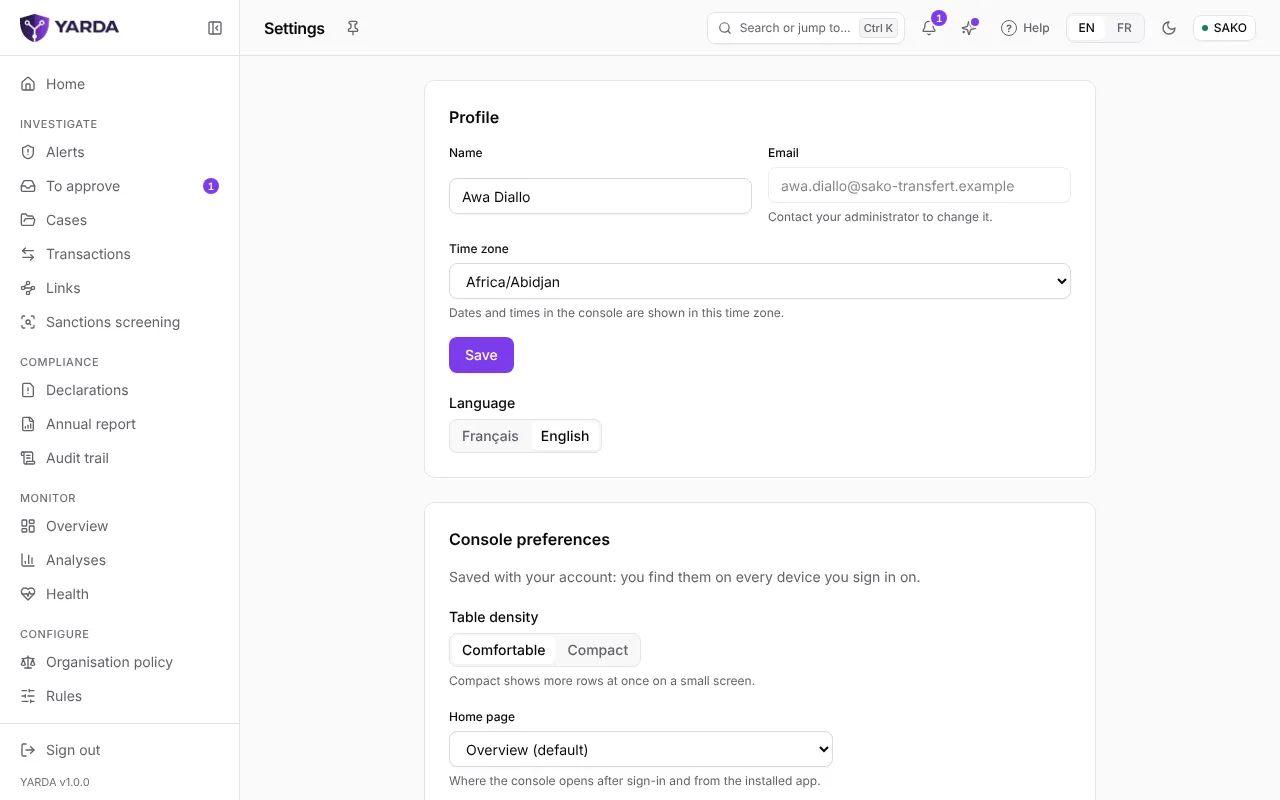
In “Settings”, the “Security” section is yours, whatever your role:
- “Change password”: your other sessions are ended.
- “Two-step verification”: turn it on with an authenticator app and keep your backup codes; “New backup codes” replaces them.
- “Passkeys”: “Add a passkey” to sign in without a password from this device.
- “Open sessions” lists your sign-ins: “End this session” signs a device out, “Sign out everywhere” all of them at once.
Some sensitive acts ask you to confirm it is you when you take them, even when you are already signed in.
Knowing who did what
- “Audit trail”, under Compliance, for supervisors and admins: every act that changes how your organisation is protected or takes data out, with its author, its date and the values before and after. Events are only ever added, and each carries the fingerprint of the one before. Depending on your plan, “Export the trail” downloads it.
- “Access by YARDA’s support”, in Settings: every visit by a member of YARDA’s staff to your space is written there, and your policy may put it under your admins’ agreement.
- The trust page, under Organisation, says where the service runs, which providers handle your data, how long it is kept and who can reach it.
Screenshots taken on the fictitious demonstration data, on .